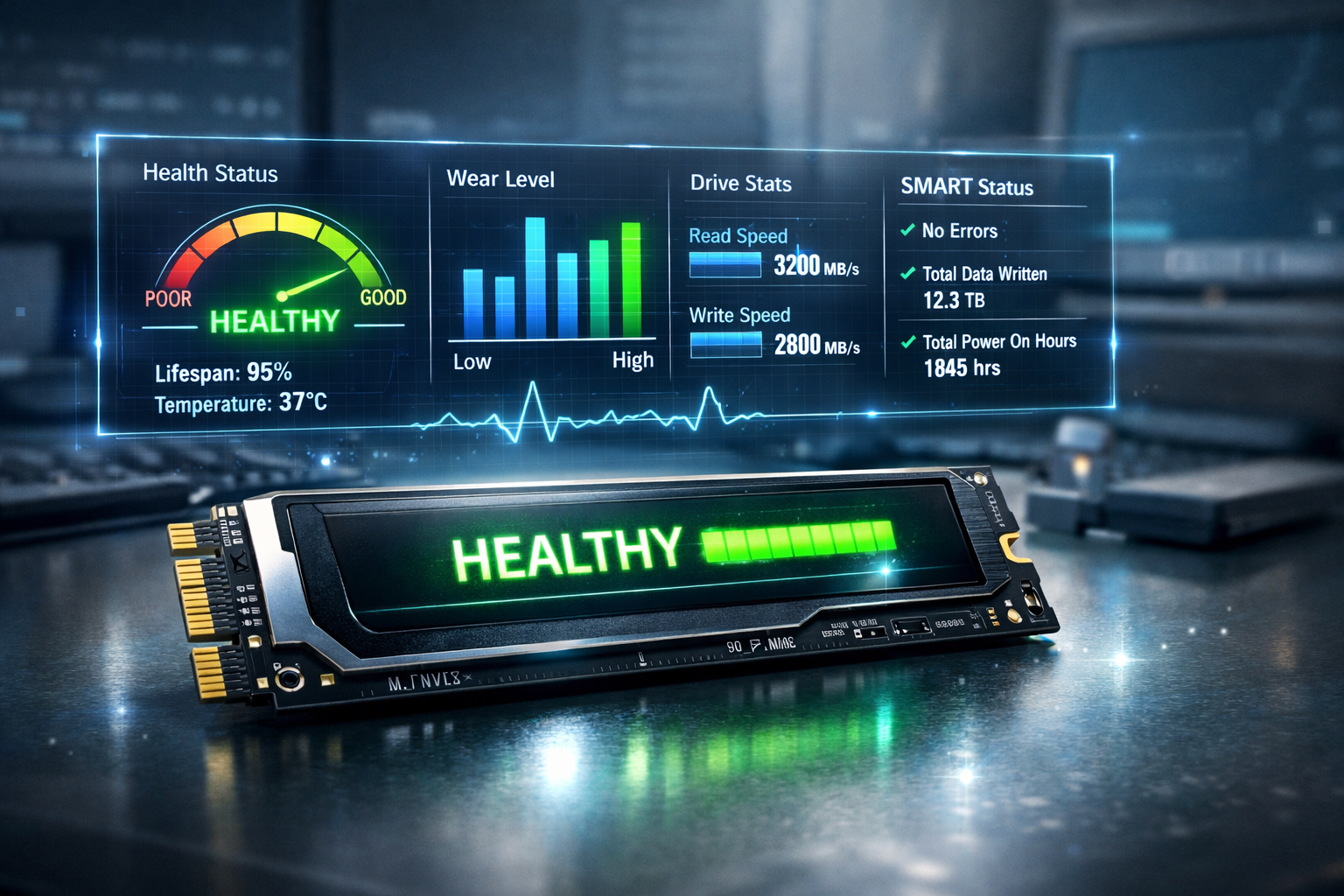
In the modern digital era, storage devices play a crucial role in ensuring the smooth functioning of computers and laptops. Solid State Drives, commonly known as SSDs, have become the preferred choice for many users due to their high-speed performance, reliability, and efficiency compared to traditional Hard Disk Drives (HDDs). However, like all technology, SSDs are not immune to wear and tear. Monitoring the health of your SSD is essential to maintain its performance, prevent data loss, and extend its lifespan. Understanding how to check SSD health is critical for every computer user, whether you are a casual user, a gamer, or a professional working with large files.
SSD health essentially reflects how efficiently your drive is operating and whether it is at risk of failure. Over time, SSDs experience wear due to the limited number of write and erase cycles of their memory cells. If these cells degrade, it can lead to slower performance, errors, and in severe cases, complete drive failure. Therefore, taking proactive measures to monitor and maintain your SSD ensures not only system performance but also the security of your valuable data.
Understanding SSD Technology and Its Lifespan
To properly understand why monitoring SSD health is necessary, it is important to understand how SSDs work. Unlike traditional HDDs that store data on spinning disks, SSDs store data on NAND flash memory chips. This architecture allows SSDs to operate silently, access data faster, and withstand physical shocks. However, NAND flash memory has a finite number of program/erase cycles, which gradually diminishes the drive’s efficiency.
The lifespan of an SSD is often measured in terms of TBW, or Terabytes Written, which indicates the total amount of data that can be written to the drive before it becomes unreliable. The wear-leveling algorithms built into modern SSDs help distribute data evenly across the memory cells, extending the overall lifespan of the drive. Nevertheless, no SSD lasts forever, and monitoring its health becomes a crucial preventive measure.
Why Checking SSD Health Is Important
Regularly checking the health of your SSD offers multiple benefits. First, it helps prevent unexpected data loss. SSD failures, although less common than HDD failures, can occur suddenly, leaving users with no time to recover their data. By monitoring the health of your drive, you can identify warning signs before a catastrophic failure occurs.
Second, monitoring SSD health helps maintain system performance. A degraded SSD can result in slow boot times, longer application load times, and overall sluggish system performance. Early detection of problems allows you to take corrective actions, such as updating firmware or migrating data to a new drive, which keeps your system running smoothly.
Finally, checking SSD health contributes to cost efficiency. A well-maintained SSD lasts longer, saving you money by delaying the need for replacements. It also ensures that your important files, photos, videos, and professional documents remain secure.
Common Signs of SSD Wear and Failure
Even without running diagnostic tools, there are several signs that can indicate your SSD may be deteriorating. A sudden slowdown in booting your system or opening applications can signal that the drive is struggling. Files may begin to take longer to save or transfer, and in some cases, you may notice corrupted files or missing data. While SSDs do not make mechanical noises like HDDs, abnormal system behavior and frequent crashes can also be indicative of failing memory cells.
SMART warnings, generated by the drive’s internal monitoring system, are another key indicator. If your system reports that the SSD’s SMART status is failing, it is a clear signal to check the drive immediately and take preventive measures. Recognizing these signs early allows you to act before a total failure occurs.
Built-in Tools for Checking SSD Health
Modern operating systems come equipped with built-in tools that make it easy to check SSD health. For Windows users, one of the most accessible methods is using the Command Prompt or PowerShell to access SMART data. By typing specific commands, you can see whether your drive is operating normally and if any health indicators are warning of potential problems. Windows also offers the CHKDSK tool, which scans the drive for file system errors and attempts to repair them. While CHKDSK is primarily for detecting logical errors, it can help identify early signs of storage issues.
Mac users can rely on Disk Utility, a native application that provides both SMART status and first aid functions. By selecting your SSD and running the first aid tool, Mac will check the drive for errors and attempt to repair minor issues. Disk Utility also displays a simple health indicator such as “Verified” or “Failing,” giving you an immediate sense of your SSD’s condition. Using these built-in tools regularly ensures that you are aware of your SSD’s health without requiring third-party software.
Professional Third-Party Tools for SSD Health Monitoring
While built-in tools provide basic monitoring, third-party applications offer detailed analysis and advanced features. CrystalDiskInfo, for example, is a popular tool for Windows that provides a comprehensive overview of your SSD’s health. It displays detailed SMART data, temperature readings, and estimated lifespan, making it easy to understand the drive’s condition at a glance.
For users with Samsung SSDs, Samsung Magician is an excellent choice. This software not only monitors the drive’s health but also optimizes performance, updates firmware, and tracks the total bytes written. Similarly, SSD Life is a versatile tool available for both Windows and Mac, designed to estimate the remaining lifespan of your SSD and provide performance reports. Advanced users can utilize Smartmontools, a command-line utility available across multiple operating systems, for in-depth analysis of SMART data and other drive parameters.
Using these professional tools regularly gives you a more complete picture of your SSD’s health and allows for proactive maintenance, ensuring that your drive continues to perform optimally.
Interpreting SMART Data for SSD Health
SMART, which stands for Self-Monitoring, Analysis, and Reporting Technology, is a key component in monitoring SSD health. It provides detailed metrics about various aspects of the drive’s performance and longevity. Some of the most important parameters include the Reallocated Sector Count, which shows the number of bad sectors replaced with spare ones, and the Wear Leveling Count, which indicates the remaining lifespan of the SSD.
Other important indicators include temperature, as excessive heat can accelerate wear, and power-on hours, which track the total time the drive has been in operation. Learning to interpret SMART data allows you to detect issues that may not yet affect performance but could lead to future problems. If any parameter indicates high wear or repeated reallocated sectors, it is wise to back up your data and consider replacing the drive.
Steps to Maintain and Extend SSD Lifespan
Maintaining your SSD goes beyond simply checking its health. Keeping your firmware updated is one of the most effective ways to ensure optimal performance. Firmware updates from manufacturers often include performance enhancements and fixes for known issues. It is also important to avoid filling your SSD to capacity, as keeping 20-25% of the drive free helps maintain speed and efficiency.
Enabling TRIM is another crucial step, as it helps the drive manage deleted data efficiently, reducing wear on memory cells. Users should also limit unnecessary writes, such as frequent large file transfers or continuous downloads, as excessive writing contributes to wear. Regular backups are essential to protect data in case of unexpected failure. By combining monitoring, maintenance, and cautious usage, you can significantly extend the lifespan of your SSD.
How to Check SSD Health Step by Step
To check your SSD health thoroughly, start by identifying the type of SSD you have, whether SATA, NVMe, or PCIe. Next, use your operating system’s built-in tools to access SMART data. On Windows, open Command Prompt or PowerShell and use commands to display health status. On Mac, open Disk Utility, select the SSD, and run the first aid tool.
After obtaining the basic health report, you can use professional third-party tools such as CrystalDiskInfo or Samsung Magician to gain detailed insights into the drive’s performance, temperature, and wear level. Carefully review the SMART parameters and note any warnings or signs of degradation. Finally, implement maintenance practices such as freeing up space, enabling TRIM, and keeping firmware updated. By following this systematic approach, you ensure your SSD remains reliable and performs at its peak.
Frequently Asked Questions (FAQs)
What is the best way to check SSD health?
The best way to check SSD health is by combining built-in tools and professional software. Using native tools such as Disk Utility on Mac or SMART monitoring via PowerShell on Windows gives a quick overview, while applications like CrystalDiskInfo provide in-depth analysis and performance metrics.
Can SSDs fail suddenly?
Yes, although SSDs generally have a longer lifespan than HDDs, they can fail suddenly due to memory cell degradation or firmware issues. Regular monitoring and backups are essential to protect against unexpected failures.
How often should I monitor my SSD?
Monitoring once every two to three months is recommended for casual users. Heavy users, gamers, or professionals working with large datasets should monitor monthly to detect early signs of wear.
Does checking SSD health affect its performance?
No, monitoring your SSD’s health using either built-in or third-party tools does not impact performance. These tools are designed to run efficiently without affecting the drive’s normal operations.
Can a failing SSD be repaired?
Minor issues can sometimes be resolved with system tools or firmware updates, but serious wear or memory cell degradation usually requires replacing the SSD. Always back up your data to prevent loss.
What is SMART, and why is it important?
SMART stands for Self-Monitoring, Analysis, and Reporting Technology. It provides key indicators of SSD health, including wear levels, bad sectors, and temperature, helping users detect potential problems before they become critical.
Does TRIM improve SSD health?
Yes, enabling TRIM helps your SSD manage deleted files efficiently, reducing unnecessary wear and prolonging the drive’s lifespan. Most modern operating systems enable TRIM by default, but it is important to verify.
Conclusion
Understanding how to check SSD health is no longer optional in the era of fast, high-performance storage. SSDs provide superior speed and durability, but their limited write cycles mean that monitoring health is essential. Using a combination of operating system tools, professional software, and smart maintenance practices ensures that your SSD continues to operate efficiently and securely. By recognizing early warning signs, interpreting SMART data, and taking proactive steps, users can extend the lifespan of their SSDs, prevent data loss, and maintain optimal system performance. Regular monitoring and careful usage are the keys to a reliable and long-lasting SSD.