When people switch from Windows to macOS, they often have trouble with basic system management tasks at first. People usually ask them how to check the performance of their system, keep an eye on running applications, or close programs that have frozen. Task Manager is a tool that Windows users know about. It lets them quickly access system resources and running processes. The same functionality is available on macOS, but it has a different name and look. Anyone who wants to have full control over their Mac’s performance and stability needs to know how to get the task manager on Mac.
This guide goes over everything in a clear, professional, and easy-to-understand way. It is meant for people who are new to macOS system management, people who are more experienced, and even professionals who want to learn more. By the end of this article, you will know exactly where to find the Mac version of Task Manager, how it works, and how to use it to keep your system running smoothly and quickly.
Learning what the Mac version of Task Manager is
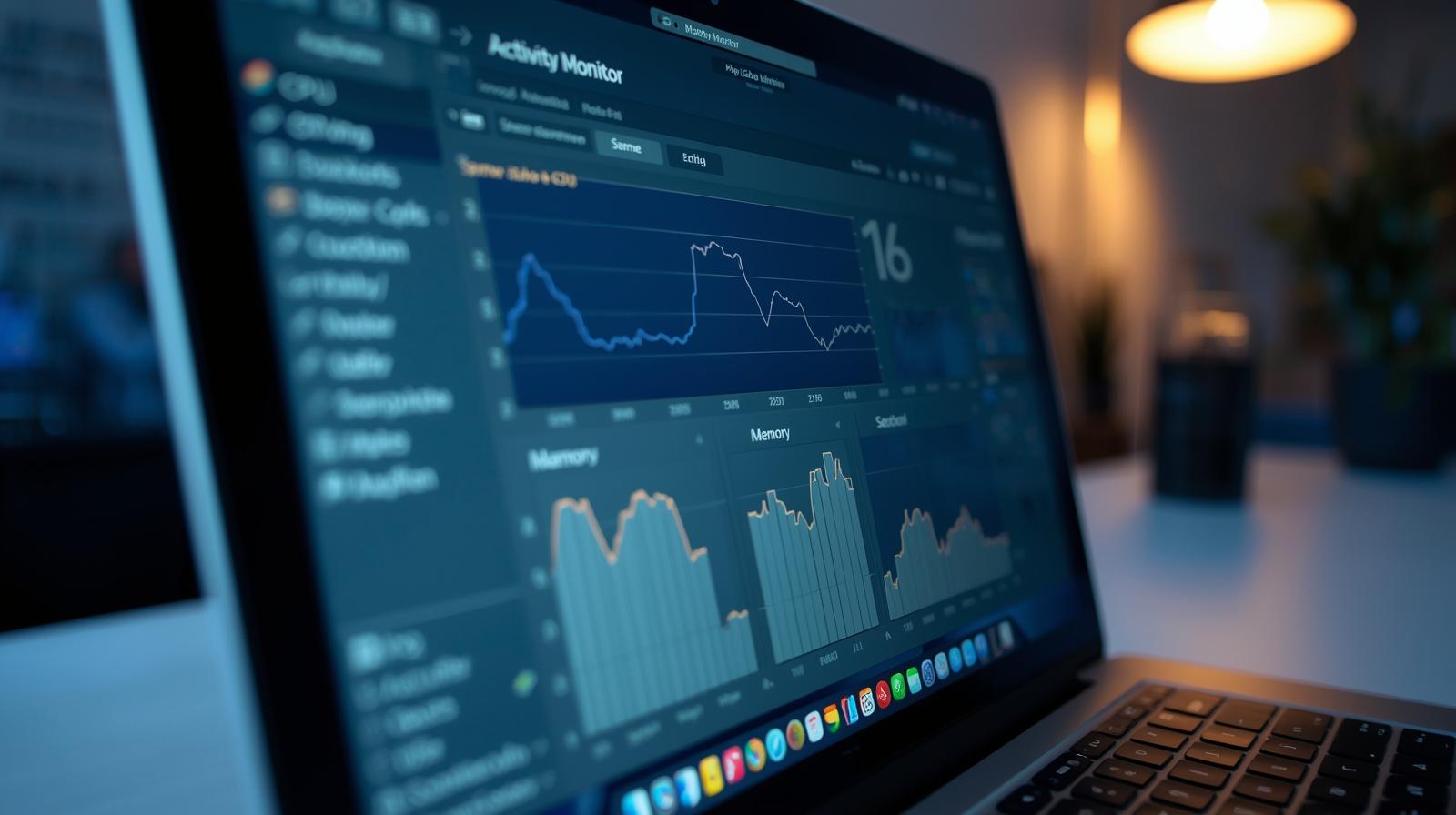
There is no tool called Task Manager in macOS. Apple instead offers a powerful built-in tool called Activity Monitor. Activity Monitor does everything that Task Manager does on Windows, and in many cases, it gives you even more detailed information about your system. Users can keep an eye on applications, background processes, CPU load, memory usage, disk activity, network performance, and power use.
It’s much easier to learn how to get Task Manager on Mac once you know that Activity Monitor is the macOS version of Task Manager. You don’t need any other software to use the tool, and it’s already on every Mac. Apple made it safe, dependable, and deeply connected to the operating system.
Why Mac users need Activity Monitor
Activity Monitor is not just a way to fix problems. It is an important system tool that helps people figure out what is going on behind the scenes on their Mac. Activity Monitor makes it easy to figure out what’s wrong with your Mac when it starts to run slowly, gets too hot, or uses up battery life faster than normal.
Users can find programs that use too many system resources by using Activity Monitor. It also helps find background processes that might be running without the user knowing. Users can improve performance, extend battery life, and keep their systems healthy over time with this knowledge.
If you want to use macOS effectively, you need to know how to get the task manager on Mac and how to use Activity Monitor.
How to Use Spotlight Search to Open Activity Monitor
Spotlight Search is the quickest and most common way to get to Activity Monitor. Apple made Spotlight a universal search tool that lets users quickly open apps, find files, and use system utilities.
Press the Command and Space keys at the same time to open Activity Monitor with Spotlight. In the middle of the screen, a search bar will show up. Press Enter after typing “Activity Monitor.” The app will open right away.
This method is especially helpful for people who like keyboard shortcuts and quick access. It works with all recent versions of macOS and doesn’t need you to go through folders. That is the easiest way for most people to get to the Mac version of Task Manager.
How to open Activity Monitor in Finder
Finder is the macOS file management system, and it also lets you use system tools. The Utilities folder, which is in the Applications directory, has Activity Monitor in it.
Open a Finder window to open Activity Monitor. Go to the Applications folder and then open the Utilities folder. Activity Monitor is in this folder. If you click on it, the app will open.
This method is best for people who like to see things and want to know where their Mac stores system utilities. It also helps to set up shortcuts or look into other built-in macOS tools.
Keeping Activity Monitor in the Dock for Easy Access
Keeping Activity Monitor in the Dock can save time for people who often check how well their system is working. When Activity Monitor is open, click on its icon in the Dock with the right mouse button. Choose the option that lets the app stay in the Dock forever from the options menu.
This makes sure that you can always get to Activity Monitor with just one click. This small change makes a big difference in how quickly things get done for power users, developers, or anyone who has to handle tasks that use a lot of resources.
An Overview of the Activity Monitor Interface
When you open Activity Monitor, the interface is clean and well-organized. Several tabs at the top of the window show different types of system data. Each tab is about a different kind of resource use, which lets users look at performance in great detail.
The interface is meant to give you information without being too much. Even people who don’t know much about technology can easily understand basic performance indicators.
Checking the CPU and analyzing its performance
The CPU section of Activity Monitor shows how much processing power each program and system process is using. When a Mac slows down or stops working, this information is very important. Apps that use a lot of CPU resources can often slow down your computer.
Users can tell which apps are overloading the processor by looking at CPU usage. You can make your system respond better right away by closing or restarting these apps. This function is very similar to the CPU monitoring feature in Windows Task Manager.
A big part of learning how to get the task manager on a Mac and use it well is figuring out how the CPU works.
How to Manage RAM and Memory
The Memory section gives you a lot of information about how the Mac uses RAM. It shows how much memory is being used, how much memory apps are using, how many cached files there are, and how much swap space there is. Memory pressure is one of the most important signs because it shows clearly whether the system has enough RAM.
When memory pressure stays high for a long time, the system may not work as well. Users can free up memory by closing programs they don’t need or restarting programs that use a lot of memory. This proactive approach helps keep things running smoothly and quickly.
Battery Optimization and Energy Impact
The Energy section of Activity Monitor is very useful for people who use MacBooks. It shows which programs use the most power and which tasks keep the computer from going to sleep. Using too much energy can quickly drain your battery and make things hotter.
Users can change how they use their devices or get rid of apps that use a lot of energy by finding them. This makes the battery last longer, and the device works better.
Activity on the disk and performance of the storage
The Disk section keeps track of how apps read and write data to the hard drive. When there is a lot of disk activity, the system may run more slowly. This is especially true for older Macs with traditional hard drives.
Keeping an eye on disk usage can help users find background tasks like indexing or syncing that might slow down performance for a short time. Over time, this knowledge allows users to plan heavy functions for times when the system isn’t busy, which makes it run more smoothly.
Monitoring the network and using data
The Network section shows how apps use data from the internet. It shows the rates at which data is sent and received in real time. This information can help you find apps that use too much bandwidth or slow down your internet connection.
Keeping an eye on network activity is also good for security awareness because it lets users see when unknown processes are sending data without their permission.
How to safely force-quit apps
Activity Monitor lets users safely force quit an app that has frozen or stopped responding. You can close an app that isn’t responding by selecting it and choosing the “force quit” option. That doesn’t require a full system restart.
This feature is very important for keeping people productive and protecting their data. It does the same thing as ending a task in the Windows Task Manager.
Quick App Management with a Keyboard Shortcut Alternative
macOS also has a special keyboard shortcut that lets you quickly close apps that aren’t responding. Pressing Command, Option, and Escape at the same time opens a simple window that shows all the programs that are currently running. Users can choose an app and close it right away.
This tool doesn’t give you a lot of information about your system, but it’s helpful when an app freezes and stops normal operation.
The main differences between Windows Task Manager and Activity Monitor
Activity Monitor gives a more detailed breakdown of system resources, even though both tools do the same thing. It puts more emphasis on memory pressure, energy use, and disk speed. The interface is more data-driven and less cluttered, which is in line with Apple’s design philosophy.
People who switch from Windows may need some time to get used to it, but once they do, many find that Activity Monitor is more useful and accurate.
Activity Monitor fixes a lot of common performance issues
Activity Monitor can help you figure out a lot of common macOS problems. Processes that use a lot of resources can cause the system to respond slowly, overheat, make the fan noise too loud, drain the battery, and crash apps at random times. Finding and controlling these processes helps bring the system back to stability.
Users can take charge of these problems instead of just restarting their computers or using outside tools if they know how to get the task manager on Mac.
When using Activity Monitor, safety and best practices
It is safe to use Activity Monitor because it is an official Apple tool. Users should not force-quit system processes, though, unless they know exactly what they are doing. Stopping important processes might make the system unstable for a short time.
Focusing on third-party apps and apps that are easy to find makes sure they are safe and useful.
Who Should Learn How to Use Activity Monitor
Activity Monitor is helpful for everyone, including students, professionals, developers, designers, and casual users. Anyone who uses their Mac every day should know how to manage system performance and resources.
Getting a task manager on a Mac isn’t just about fixing problems. It’s about getting better at controlling and knowing how your system works.
Questions that are often asked
What is the Mac version of Task Manager?
Activity Monitor is the Mac version of Task Manager. It does all the important tasks for monitoring the system.
Does every version of macOS have Activity Monitor?
Yes, Activity Monitor is already on all versions of macOS, so you don’t have to download it.
Can Activity Monitor make a Mac run better?
Activity Monitor helps find problems with performance, which lets users take steps to fix them and make things run better.
Can you safely force-quit apps with Activity Monitor?
Yes, it’s safe to force quit apps that aren’t responding or that are from a third party.
Do I need to use third-party software instead of Activity Monitor?
Activity Monitor usually has all the information you need without needing any extra software.
In conclusion
Anyone who uses macOS needs to know how to get to the task manager. Activity Monitor is a built-in tool that lets users see everything about how their system and apps are working. It is the main place to control the system, keeping an eye on CPU and memory use, battery life, and network activity.
Users can fix problems, improve performance, and keep their Mac running smoothly and efficiently by learning how to access and use Activity Monitor correctly. This guide gives readers useful, well-organized, and easy-to-read information that meets modern SEO standards.