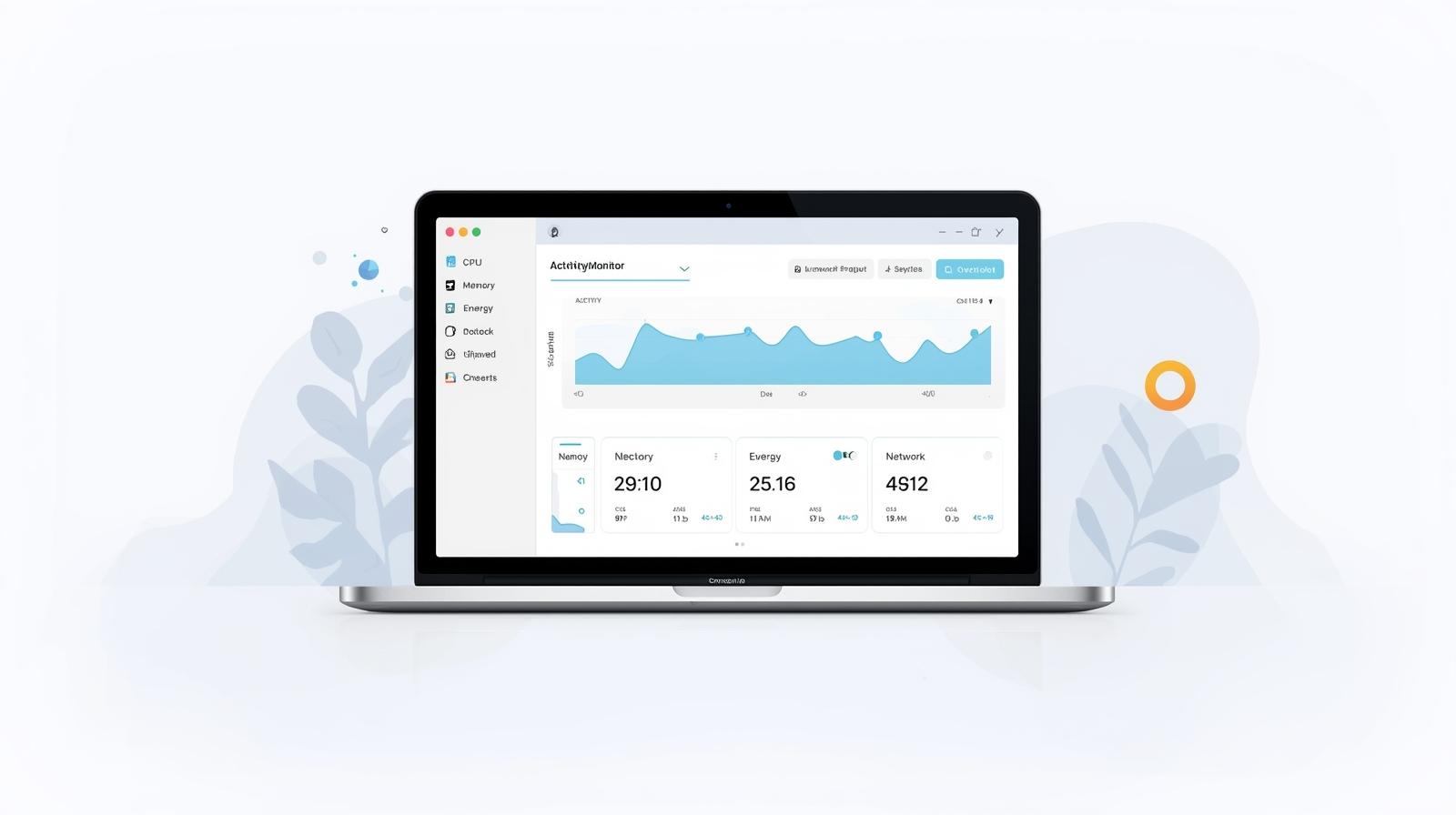
You often wonder how to open the task manager on a Mac if you use one. macOS doesn’t have a tool called Task Manager as Windows does, but it does have one called Activity Monitor that does the same thing. Activity Monitor lets users keep an eye on things like CPU usage, memory usage, disk activity, energy usage, and network activity. You can also close apps that aren’t responding, which helps keep your Mac running smoothly. This guide will show you different ways to open Activity Monitor, how to use it well, how to fix problems, and answer common questions. By the end, you’ll know exactly how to open Task Manager on Mac and get the most out of it.
What is the Mac version of the Task Manager?
The Task Manager is something that many Windows users know about. It shows you what’s going on with your computer’s processes and performance in real time. Activity Monitor is the Mac version of Task Manager. The names are different, but the main functions are the same. Activity Monitor lets you keep an eye on how much CPU, memory, energy, disk read/write, and network usage you have. You can manage apps that aren’t responding, fix slowdowns, and improve system performance if you know how to open the task manager on Mac.
Activity Monitor does more than just basic monitoring. It gives you a lot of information about how your system works, such as how processes are related to each other, how much memory they use, and how much energy and network activity are happening in real time. Mac users can find problems before they slow down their computers and keep their work flowing smoothly by using this tool regularly.
Why You Should Learn How to Open Task Manager on Your Mac
There are a lot of good reasons to know how to open the task manager on a Mac. Activity Monitor lets you force quit an app that has frozen or stopped responding without having to restart your computer. Activity Monitor can help you find out which apps or processes are causing your Mac to slow down by using a lot of CPU or memory.
Also, MacBook users who depend on battery life need to keep an eye on how much energy they use. The network tab also helps you find apps that are using too much bandwidth, which can slow down your internet. If you know how to open Task Manager on a Mac, you can keep your computer running at its best, stop it from slowing down, and fix problems quickly.
There are several ways to open Task Manager on a Mac
Using the search feature
Spotlight Search is the quickest way to get to Activity Monitor. To open Spotlight, press Command + Space, type “Activity Monitor,” and then click on the app in the search results. This method is fast and works with all versions of macOS.
How to use Finder
You can also get to Activity Monitor by using Finder. To open Activity Monitor, go to the Applications folder in Finder and then to Utilities. This method is great for people who like to explore their Mac on their own.
How to use Launchpad
Launchpad lets you see and use apps. To open Launchpad, either click on its icon in the dock or use a four-finger pinch gesture on the trackpad. In the search bar, type “Activity Monitor” and click to open it. It is an easy way for people who like an interface with icons.
Using the Terminal
People who know what they’re doing can open Activity Monitor from Terminal. To open Terminal, go to Applications > Utilities and type open -a “Activity Monitor” and hit Enter. This method is quick for people who know how to use command-line tools.
How to use Siri
You can use voice commands to open Activity Monitor on your Mac if it supports Siri. Just say, “Hey Siri, open Activity Monitor,” and the app will start. This method is easy to use when you need to do more than one thing at once or don’t want to use your hands.
How to Use the Activity Monitor Interface
It’s important to know how to use the task manager interface once you know how to open it on a Mac. There are several tabs in Activity Monitor, and each one gives you important information about how well your system is working.
The CPU tab shows how much of the CPU each application is using, which can help you find processes that are using too much processing power. The Memory tab shows how much memory is being used by different applications and how much memory pressure there is, which can slow down the system.
The Energy tab is very helpful for MacBook users because it shows which apps use the most power and shorten battery life. The Disk tab shows read and write operations on the disk, which can help you find apps that might be slowing down your computer. Finally, the Network tab shows the real-time data that each app sends and receives. It helps keep an eye on your internet connection speed.
How to Quit Apps on a Mac
You can also force quit apps that aren’t responding if you know how to open the task manager on a Mac. To do this, open Activity Monitor, choose the app that is causing problems, and click the X in the top left corner. Click Force Quit to confirm. It is very helpful when a frozen app stops the system from working normally.
When you force-quit apps, you need to be careful. You shouldn’t quit applications that you know are causing problems because it can make your system unstable.
How to Use Activity Monitor Effectively
To get the most out of Activity Monitor, check your CPU, memory, and energy usage on a regular basis. Organizing apps by how much CPU or memory they use can help you find processes that use a lot of resources. Watch out for startup programs. Some apps start up automatically when your Mac does, using system resources in the background.
You can save time by using keyboard shortcuts like Command + Option + Esc to force quit programs. It’s also important to keep an eye on how much data you use, especially if you use Wi-Fi or have a limited data connection on your MacBook. Regular checks make sure your Mac runs well and stop problems with performance.
Common Problems and How to Fix Them
Your Mac may still be slow even if Activity Monitor doesn’t open. If Activity Monitor won’t open, try restarting your Mac or checking for updates to macOS. Updates often make things run faster. If your CPU usage is high, a certain app is using too many resources. You can fix this by force-quitting the app.
When your computer doesn’t have enough RAM, it gets memory pressure. This problem can be fixed by closing apps that use a lot of memory or adding more RAM. You can also find out what’s wrong with your network by keeping an eye on which apps use the most bandwidth. You can fix a lot of common problems on your Mac without help from a tech person if you know how to open and use the Task Manager.
More advanced ways to use Activity Monitor
Activity Monitor has more than just basic monitoring features for power users. You can look at detailed information about each process, such as how much memory it uses, what files it has open, and what processes it is a parent of. This is especially helpful for fixing complicated performance problems.
Activity Monitor also lets you keep an eye on background processes and daemons, which are important system services that run on their own without user input. Advanced users can improve system performance and find possible problems by watching these processes. Monitoring your energy use and your network can give you more information about how much battery you’re using and what you’re doing online. Activity Monitor is a great tool for managing your Mac because of these advanced features.
Questions that are often asked (FAQs)
Q1: Is there a Task Manager on Mac like there is on Windows?
Yes, Mac doesn’t have a program called Task Manager. Still, Activity Monitor does the same thing by giving you detailed information about how much CPU, memory, energy, disk, and network space you’re using.
Q2: How do I use a keyboard shortcut to open Task Manager on my Mac?
There isn’t a direct shortcut for Activity Monitor, but you can open Spotlight by pressing Command + Space, typing Activity Monitor, and then pressing Enter. You can also quickly close apps by pressing Command + Option + Esc to open the Force Quit Applications window.
Q3: Can you check how much battery I’m using with Task Manager on my Mac?
Yes, the Energy tab in Activity Monitor shows how much energy all of your running apps are using in real time, which can help you find apps that are draining your battery.
Q4: What do I do if an app won’t respond?
Open Activity Monitor, choose the app that isn’t working, click the X icon, and then click Force Quit to confirm. lets you close apps that are frozen without having to restart your Mac.
Q5: Is it safe to use Activity Monitor?
Yes, Activity Monitor is a built-in tool for macOS and is completely safe. To keep the system stable, don’t quit important system processes.
Q6: Can Activity Monitor help fix problems with the network?
Yes, the Network tab shows the data that each app sends and receives. can help you find apps that use too much bandwidth or slow down your internet connection.
Q7: How often should I check Activity Monitor?
To get the best performance, you should check Activity Monitor often, especially if your apps are running slowly or not at all. Most users only need to check once a week.
In conclusion
Every Mac user needs to know how to open the task manager. Activity Monitor gives you a full picture of how your system is working by letting you see how much CPU, memory, energy, disk, and network usage there is. You can force quit apps that aren’t responding, make better use of resources, and keep things running smoothly by using it correctly.
If you know how to open Activity Monitor through Spotlight, Finder, Launchpad, Terminal, or Siri, you will always be in charge of how well your Mac works, no matter how experienced you are. You can quickly fix problems, stop your Mac from slowing down, and make it last longer by regularly checking it, carefully managing your apps, and learning how to use Activity Monitor’s advanced features.
You can confidently take care of your Mac by following this guide and using Activity Monitor, which is like Task Manager for Macs, to keep your computer running quickly, efficiently, and reliably.